How to add the TimeNinja widget to your iPhone Home Screen
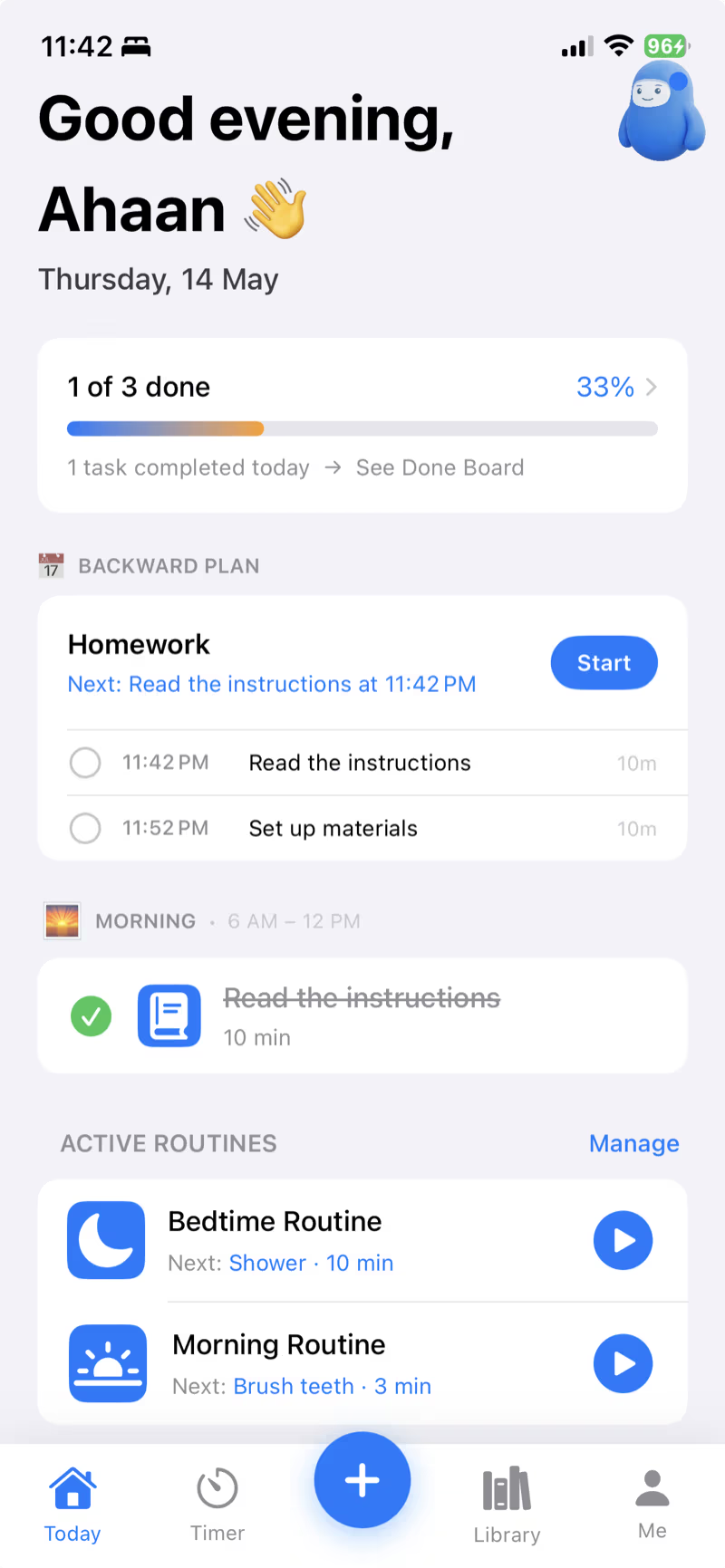
The TimeNinja widget shows your live focus timer right on your Home Screen — no tap, no app launch, just a glance. For ADHD brains, that visible countdown is the whole point: time stops being invisible.
Here's how to add it. Takes about 30 seconds.
Step-by-step
- Long-press any empty area on your Home Screen until the apps start wiggling.
- Tap the + button in the top-left corner.
- In the search bar, type TimeNinja (or scroll down — widgets are listed alphabetically).
- Pick a size:
- Small — emoji + countdown. Fits anywhere.
- Medium — emoji + task name + progress bar + countdown. Best for context at a glance.
- Tap Add Widget, then tap Done in the top-right.
That's it. Drag the widget anywhere on the screen.
What you'll see
- Timer running: the task emoji, name, and remaining time, ticking live.
- Timer paused: frozen countdown with a paused indicator.
- No timer: a quiet "No Timer" placeholder. Tap to open the app and start one.
Why a Home Screen widget matters for ADHD
Every time you unlock your phone to "check the timer," you also see Instagram, Slack, ten unread messages, and a YouTube notification. That's three apps and four minutes lost before you remember why you opened your phone.
A Home Screen widget cuts that loop. You glance, you see the countdown, you go back to work. Externalising time like this is one of the most reliable interventions for ADHD time blindness.
Troubleshooting
- Can't find TimeNinja in the widget list? Force-quit the app once (swipe up + flick the TimeNinja card), then try again. iOS sometimes needs a nudge after a fresh install.
- Widget shows "No Timer" while a timer is running? Long-press the widget → Remove Widget → re-add it. iOS occasionally needs to re-bind the shared data on the first install.
- Want it on your Lock Screen too? The Live Activity already handles that — start any timer and the Lock Screen banner appears automatically. No setup needed.
Which widget size should you pick?
The small (1x1) widget shows your single next task — perfect if your goal is one clear "do this now" cue with zero clutter. The medium (2x1) widget adds your next few items and the live countdown when a timer is running. Pick the smallest size that still shows what you actually need; an overloaded widget is just another wall of text your brain will skip.
Make the widget actually work for an ADHD brain
- Put it on your first Home Screen. A widget two swipes away is out of sight, out of mind — the exact problem you're trying to solve. It only externalizes the task if you can't miss it.
- Add a Lock Screen widget too. Most check-ins happen on the Lock Screen. A glanceable task there means you re-orient before you even unlock and fall into a notification rabbit hole.
- Pair it with a Live Activity. When a timer is running, the Live Activity keeps your countdown visible on the Lock Screen and Dynamic Island — so time stays felt, not just remembered.
- Don't bury it in a folder. If you have to go looking, you won't. Visibility is the whole point.
Frequently asked questions
How do I add the TimeNinja widget to my iPhone Home Screen?
Touch and hold an empty area of your Home Screen until the apps jiggle, tap the + in the top corner, search for TimeNinja, choose a widget size, then tap Add Widget and Done.
Why is a Home Screen widget helpful for ADHD?
It keeps your current task and remaining time visible without opening the app — externalizing the reminder so it doesn't drop out of sight, out of mind.
What does the TimeNinja widget show?
Your next task and, when a timer is running, the live countdown — so a glance at your Home Screen is enough to stay oriented.
My widget isn't updating — how do I fix it?
Make sure Background App Refresh is on for TimeNinja, that you've opened the app recently, and try removing and re-adding the widget. iOS updates widgets periodically rather than every second.